
S-Parameter Cascader
S-Parameter Cascade Tool – User Guide
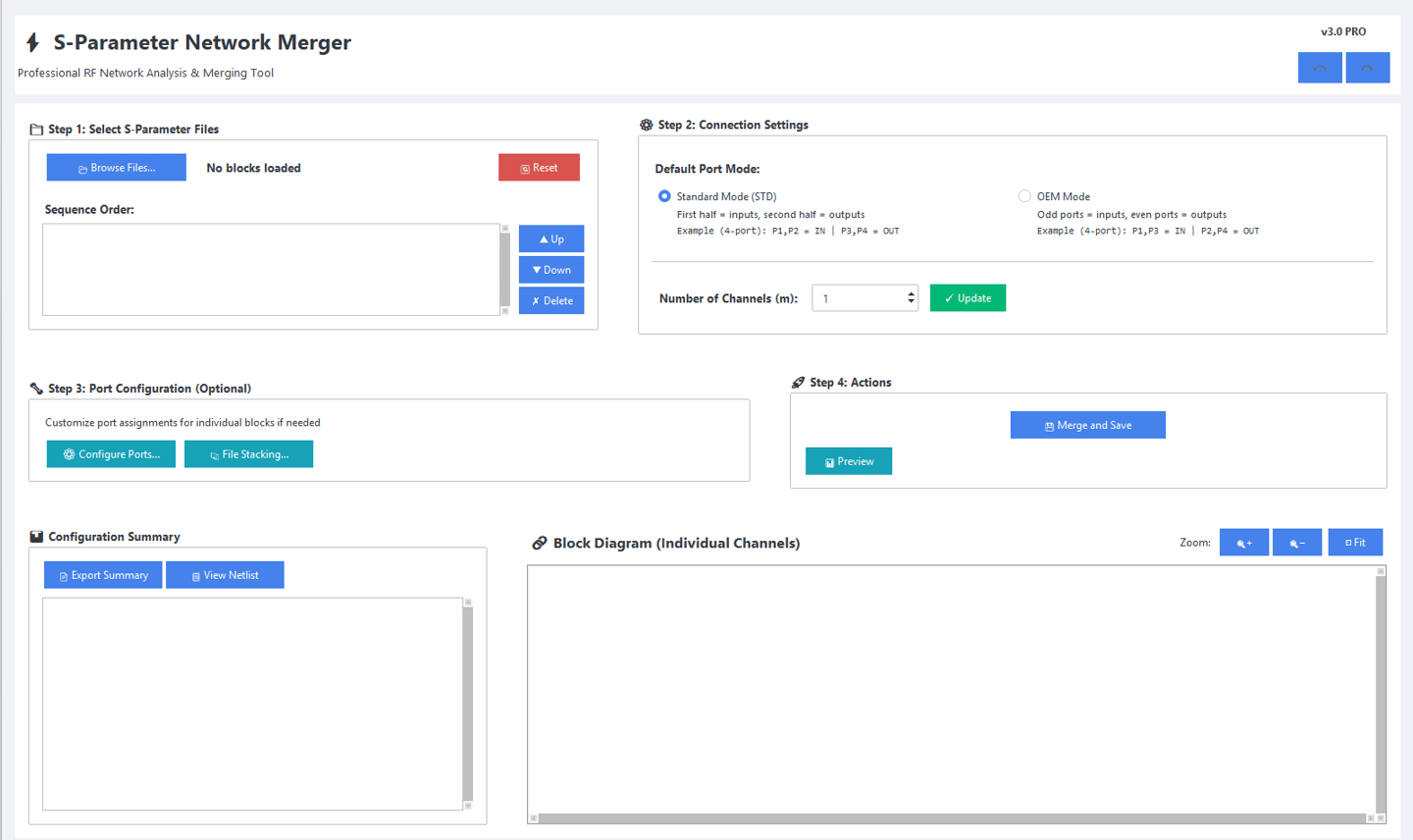
Step 1: Select S-Parameter Files
Browse Files:
Use the file browser to load one or multiple S-parameter files. These files can be cascaded together or used to reduce the number of ports.
Sequence Order:
Arrange the order of S-parameter blocks using the Up, Down, and Delete buttons. The sequence determines the cascading order.
Step 2: Connection Settings
Default Port Mode:
Choose whether the selected S-parameter files follow STD or OEM port-ordering conventions.
If the files use mixed conventions, continue to Step 3 to configure ports individually.
Number of Channels:
Specify the required number of channels.
For example:
An s8p file contains 4 channels
If only 2 channels are needed, you can select them here
Step 3: Port Configurations
Configure Ports:
Manually configure the port order for each file. You can set the ports to STD, OEM, or define a custom port mapping.
File Stacking:
Use this feature when combining files with different port counts.
Example:
If a channel consists of PKG → PCB → PKG, where both PKG files are s16p and the PCB is s8p, you can stack the PCB file twice. This effectively creates a virtual s16p PCB block for proper cascading.
Step 4: Actions
Preview:
View the individual Insertion Loss (IL) and Return Loss (RL) of each file before merging.
Merge and Save:
Cascades the S-parameter blocks and exports the final result.
You will be prompted to enter:
Start frequency
Stop frequency
Frequency step size
Configuration Summary:
Displays a concise summary of all settings used in the cascading operation.
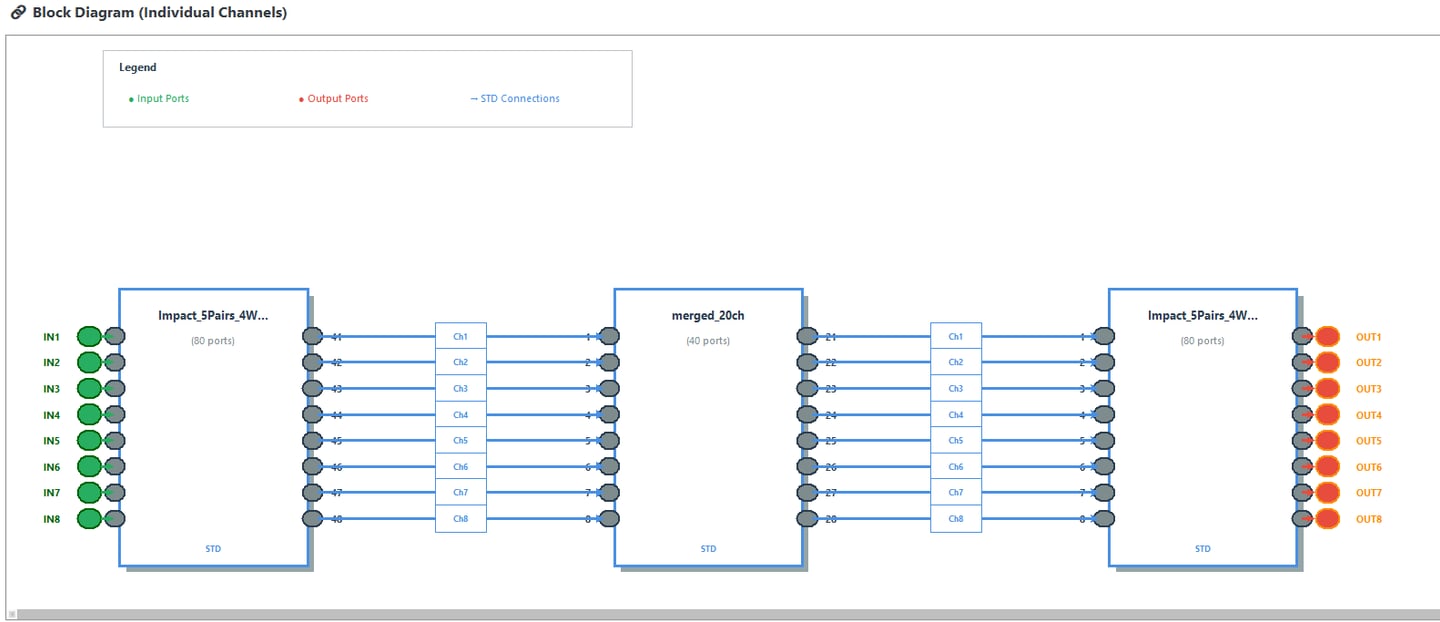
Block Diagram:
Provides a visual representation of how the S-parameter files are cascaded to form the complete channel.

Contact Us
Reach out for support or questions anytime.